Aerophone Transpose Mode: Scene vs. System, and Which to Use
🌐 Read this article in Japanese(この記事を日本語で読む)
Hi, I'm Shuko.
The Aerophone has so many functions. Learning to use them all is hard.
If you don't know what your Aerophone can do, you end up in the same place as someone who uses a smartphone only for calls and texts. The instrument can do much more.
The Aerophone has many useful functions built in. This article covers one of them: transpose.
Transpose lets you play sheet music written in any key. You change the key on the instrument instead of rewriting the music.
The most important part is a setting called Transpose Mode. It has two options, "Scene" and "System". Once you know the difference, transpose becomes much easier to use.
I should mention that I started the Aerophone as a complete beginner. I had never played a wind instrument before. So this article explains the setting from the beginning.
Contents
Switching Scenes
Before we get to transpose, let's review how to switch sounds.
When you first get an Aerophone, you probably start by trying out the built-in sounds. Roland calls each of these sounds a Scene.
The AE-20 has more than 260 preset Scenes. Wind instruments are well covered: saxophone, flute, clarinet, trumpet and more. You also get strings such as violin and cello, and world instruments such as the shakuhachi and the erhu. Organ, piano, guitar, and even drums are included.
You switch between these sounds with the [SCENE CATEGORY] knob and the [SCENE] (▲/▼) buttons on the instrument. The knob selects a category, and the buttons move through the Scenes inside it.
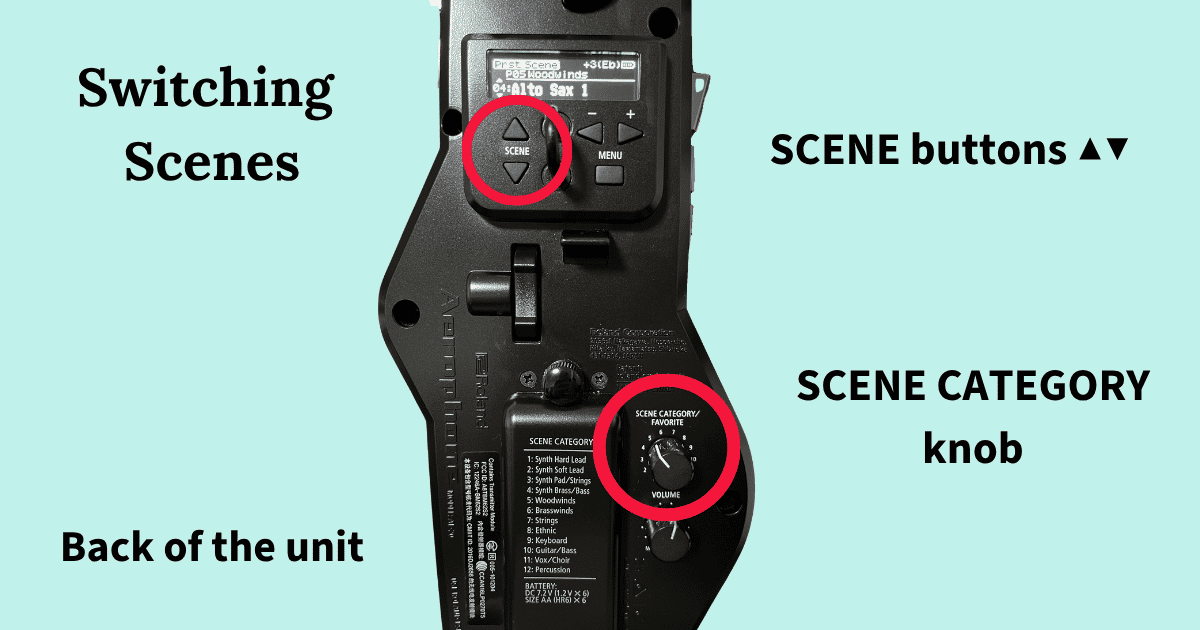
Once you have tried a few Scenes, the next thing you will want is the subject of this article: transpose.
Roland Aerophone AE-20
See full specs and details on the official page:
Roland Aerophone AE-20 — Official Product Page
The Transpose Function
Now let's look at transpose: what it does, and how to set it.
First, why does the key matter? When you play alone, you may not notice that you are in the wrong key. The melody still sounds like the melody. But when you play with a backing track, a recording, or another player, the notes will not match. Transpose solves this problem.
What Is a Transposing Instrument?
Some instruments, such as the saxophone, trumpet, and French horn, are called transposing instruments. When you play a C written on the sheet music, you do not hear the same C as on a piano.
Here is the note you actually hear when each instrument plays a written C:
- Alto saxophone: E♭
- Trumpet: B♭
- French horn: F
These are only a few examples. There are many other transposing instruments. Normally, each one needs sheet music written for its own key.
With the Aerophone, you do not need separate sheet music. Transpose lets you change the key on the instrument itself. If you set the alto sax sound to C, you can play flute music with it. If you set it to B♭, you can play trumpet music.
It also works the other way. You can play alto sax music with a violin sound. I use this example later in this article.
Transpose also helps with songs that have many sharps or flats. You can read the music in a simpler key, and the Aerophone shifts the sound to the original key. This makes these songs much easier for beginners.
How to Set Transpose
Here are the actual steps.
The first setting to check is Transpose Mode. Here you choose "Scene" or "System".
The screen has two rows. The upper row shows the name of the setting. The lower row shows its value.
- Turn on the Aerophone and press the [MENU] button.
- Press the [+] button once. "Transpose Mode" appears in the upper row.
- Press [MENU]. The cursor moves to the lower row.
- Choose "Scene" or "System" with the [−] [+] buttons.
- Press [MENU] again. When the cursor returns to the upper row, the change is confirmed.
- Press a [SCENE] button to return to the Scene screen.
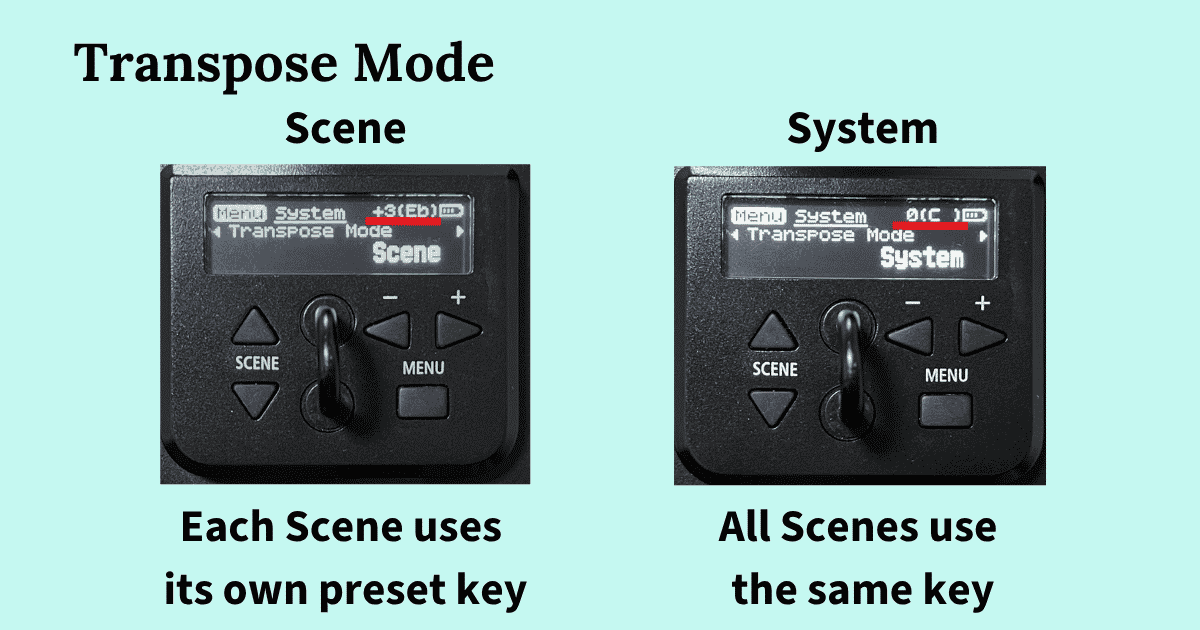
With "Scene", each Scene uses the key that is preset for it. In the left image, the Scene is Alto Sax 1, so the top right of the screen shows +3 (Eb). The screen writes E♭ as "Eb". When you change the Scene with the knob or the [SCENE] buttons, the key changes to that Scene's own setting.
With "System", every Scene uses the same key, even when you switch sounds. In the right image, the screen shows 0 (C), so all Scenes play in 0 (C).
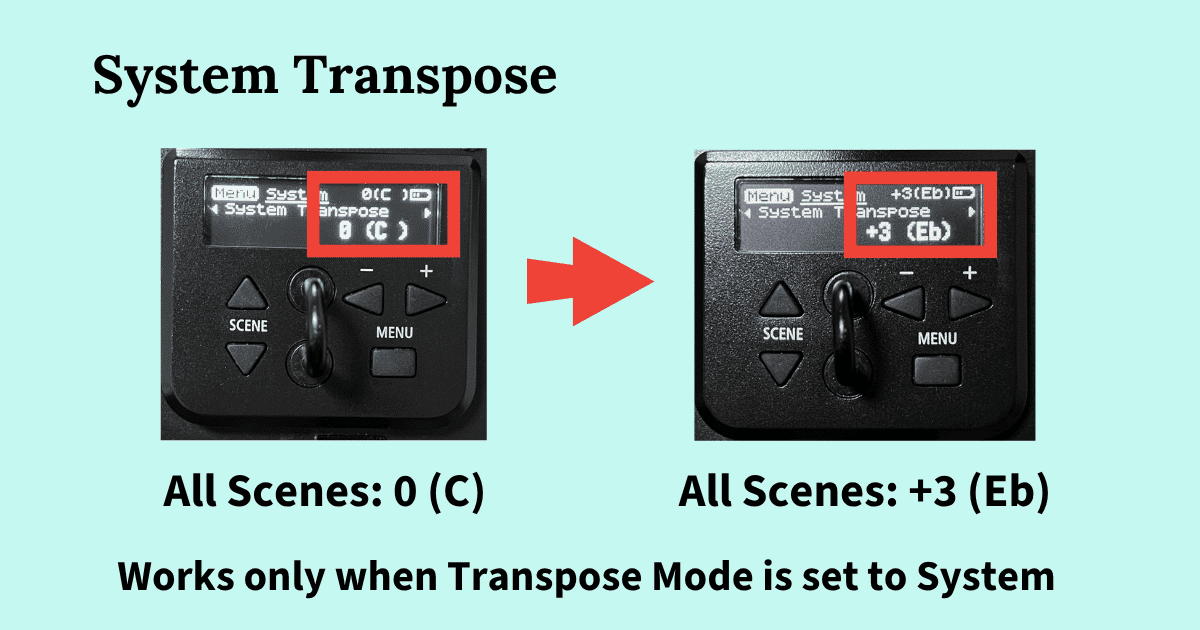
To change the key for all Scenes, use the System Transpose screen. For example, if you change it to +3 (Eb), every Scene plays in +3 (Eb).
The steps are the same as above. Only steps 2 and 4 are different:
- Press the [+] button three times. "System Transpose" appears in the upper row.
- Choose the key with the [−] [+] buttons.
Example: Playing Alto Sax Music with a Violin Sound
Let's look at a real example. You have sheet music for alto sax, and you want to play it with a violin sound.
Alto sax music is written for an instrument in E♭. On the Aerophone, the alto sax Scenes are preset to +3 (Eb), so this music sounds right with them.
The violin Scenes are preset to 0 (C). If you switch to a violin Scene and play the same music, the whole song moves to a different key: C instead of E♭. When you play alone, you may not notice. But with a backing track, the notes will not match.
So you set Transpose Mode to "System" and keep the key at +3 (Eb).
- Step 1: Choose the violin Scene, P07-01 Violin Vib 1. You can also do this step last.
- Step 2: Set Transpose Mode to "System".
- Step 3: Set System Transpose to +3 (Eb).
Now every Scene plays in +3 (Eb). You can try the same alto sax music with a violin, a flute, or a cello sound. You do not need to change the settings each time.
Summary
In this article, I explained the Aerophone's transpose function.
The setting to remember is Transpose Mode.
- "Scene": each Scene uses its own preset key.
- "System": every Scene uses the same key, even when you switch sounds.
To play alto sax music with a violin sound, set Transpose Mode to "System" and set System Transpose to +3 (Eb). With this one setting, you can play the same sheet music with many different sounds.
Once you know the difference between Scene and System, transpose becomes much easier to use.